Guide
Part of: Payments & settlement
Everything about accounting – what cashiers and treasurers get
For the treasurer what matters is that the figures add up and can be proven. This guide shows who sees what with which role – Cashier is the recommended one – where the reports, the cash desk with the Z report and the exports are in /admin, and what arrives automatically by email. Sample PDFs from the settlement receipt to the annual report show what the documents look like, and the year-end close with the DATEV export is explained step by step.
10 min read
What the documents look like
-
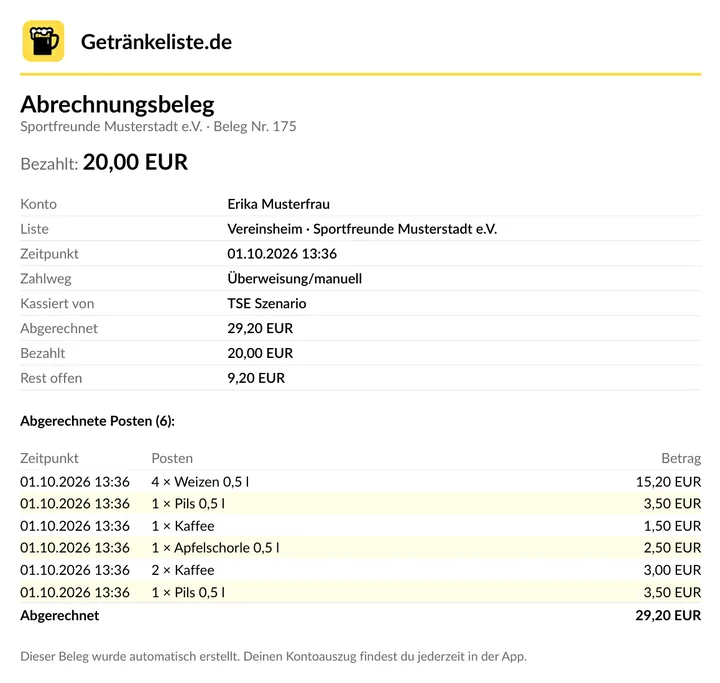
Settlement receipt
The member receives it by email after every settlement: settled items, payment method, amount paid and amount still open. Sample in German.
Open PDF -
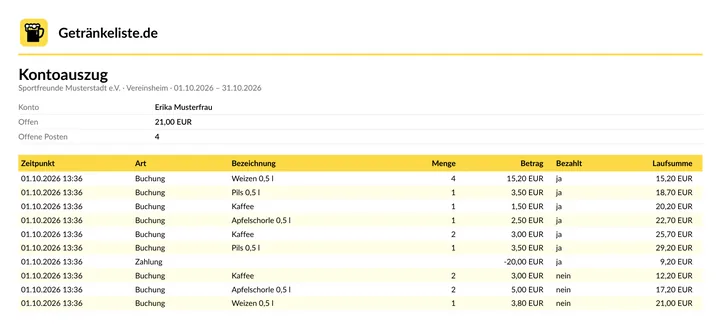
Account statement
All bookings and payments of an account in a period with running total – handy for questions from members. Sample in German.
Open PDF -
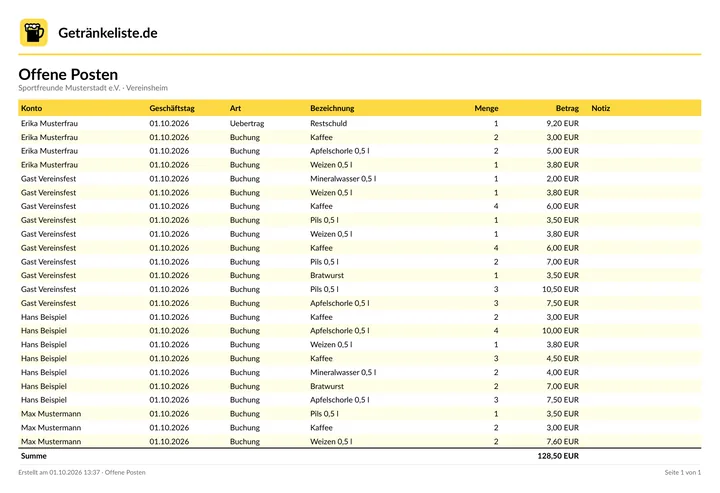
Open items
Bookings not yet settled per account – the basis for collecting and reminders. Sample in German.
Open PDF -
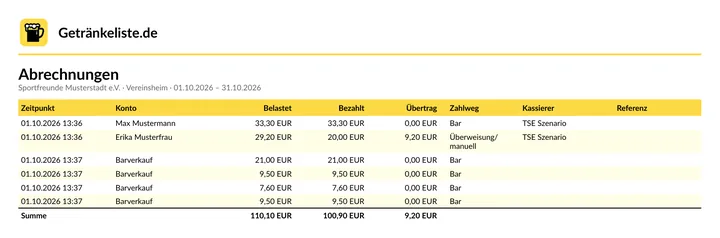
Settlements
Amounts collected in the period with payment method, carry-over and cashier. Sample in German.
Open PDF -
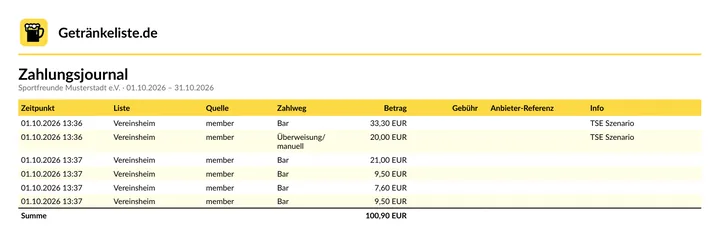
Payment journal
All payments of the organization across all lists and payment methods. Sample in German.
Open PDF -
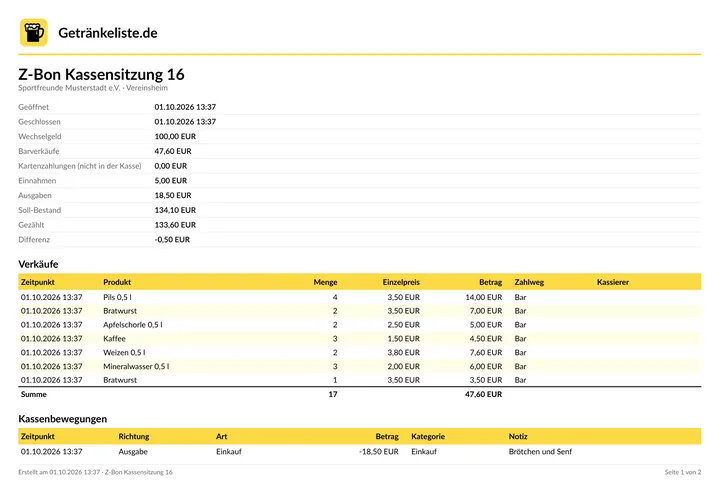
Z report
Closing of a cash session: float, sales, income, expenses, expected, counted and difference. Sample in German.
Open PDF -
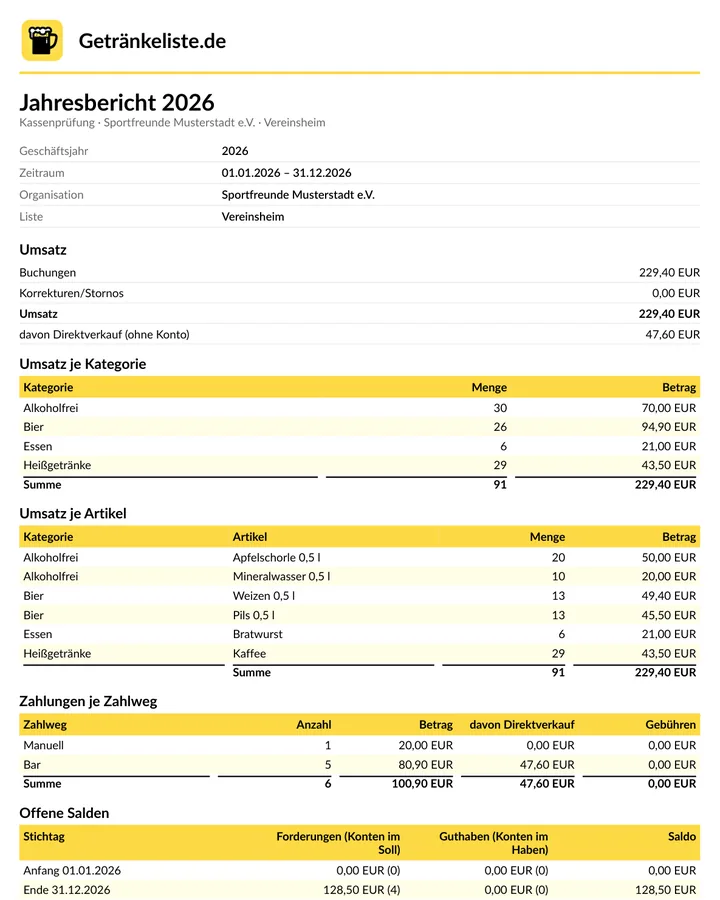
Annual report for the cash audit
The fiscal year at a glance with revenue, payments, balances, cash and signature fields. Sample in German.
Open PDF
Who can see what
- "Cashier" (role in a list): the recommended role for the treasurer – settles, runs the cash desk, requests reversals and sees all reports and exports of the list, plus the organization reports including the DATEV export download. Settling happens in the WebApp or app. In the Administration (/admin) the cashier signs in with their own login and sees only their lists there, with "Payment journal", "Reports & export", "Cash desk & Z report" and "Reversals & statements"; "Accounts" is only visible to "Manager", "Owner" and "Administrator". For a cashier, the organization reports, the annual report and the DATEV export only contain their own lists.
- "Read only" (role in a list): sees the list's reports and may export them, but cannot book anything. Suits cash auditors. They can sign in to the Administration (/admin) themselves and only see the reports of their lists there.
- "Manager" (role in a list): everything in the list except granting access – including reports, payment reminders and settings.
- "Administrator" or "Owner" of the organization: all lists, plus the organization reports, "Accounting (DATEV)" and "Donation receipts".
Give the treasurer access
- Open /admin and go to "Organization" → "Members & roles".
- Invite the treasurer with their email address and choose the scope and role.
- Recommended for the treasurer: "Cashier" for their list(s) – they can settle and see all reports, the organization reports and the DATEV export. Only the DATEV settings and donation receipts need "Administrator" or "Owner" of the organization; for auditing only, "Read only" is enough.
- For a time-limited audit set "Valid from" and "Valid until" – outside that period the access has no rights. Roles and "Valid until" are changed only in the Administration; in the admin area of the WebApp or app an access can only be invited or removed.
The reports under "Reports & export"
- Found under "Journals & accounts" → "Reports & export" after choosing the list on the left. Every report can be viewed and downloaded as PDF, Excel or CSV. With "Organization" → "Master data" → "Logo" and the option "On the club’s PDFs, top right (receipts, statements, reports)", the club logo appears on the PDFs.
- For the list: bookings, account balances, open items, settlements, daily figures, statistics per year and item, margin per item, cash sales, payout journal and donations.
- For the organization (administrator, owner and cashiers of one of its lists): payment journal across all lists and payment methods, list usage and totals per currency. Cashiers only see their own lists there.
- For many reports you choose a period with "From" and "To" or with a quick pick such as "Last month" or "This year". Report names appear in German in Administration.
- Individual payments with payment method, fee and receipt as a PDF are under "Journals & accounts" → "Payment journal". There, "Print receipt" also prints a payment as a slip on the list's receipt printer.
Cash book (PDF): the whole period in one document
- In /admin choose the list on the left and open "Journals & accounts" → "Reports & export". In the WebApp or app the same is in the admin area under "Reports & export". Anyone who sees the list's reports may create it – cashiers and "Read only" too.
- Choose the period at the top, for example the financial year with "From" and "To" or a quick selection. Without a period the cash book covers the current financial year.
- In the "Kassenbuch" section click "Kassenbuch (PDF)" – in the WebApp the button is called "Cash book (PDF)". The result is a single PDF with a cover page and table of contents; the document itself is in German.
- It opens with a summary: revenue, payments received from settlements, purchasing from deliveries and the cash desk, cost of goods sold and margin – plus what members still owe on the cut-off date and how much credit they hold.
- Then come the chapters purchase book, cash desk and Z reports, payments and settlements, statistics per year and item, and account balances on the cut-off date (without archived accounts). File the PDF together with the annual report for the auditors and the tax adviser.
Purchase book, statistics and balances
- Purchase book ("Einkaufsbuch"): every delivery with date, supplier, document, item, quantity, purchase price per unit, total purchase, sales value and margin – plus purchases paid from the cash desk. The purchase price is the one entered as "Purchase price per unit" when the delivery was booked; later price changes do not alter old deliveries. For older deliveries without this value the report uses the item's current purchase price – the "EK-Quelle" column shows where it comes from.
- Statistics per year and item, as in the old app: one header per year, the items in alphabetical order with quantity and total, "open" before "paid". At the end a "Summen" block shows open and paid items and the credit or remaining debt.
- The "Balances" report hides archived accounts – "Hide archived accounts" is ticked. Untick it and they appear with an "Archived" column.
- In the preview you sort and filter the table and show or hide columns with the column chooser. "Excel (current view)" downloads exactly that table – filters, sorting, visible columns, order and totals – while "Excel (complete)" downloads the whole report. If the preview is truncated, "Excel (current view)" is disabled.
What arrives by email automatically
- Under "Operations" → "Reversals & settlement" switch on the "Automatic monthly statement" and choose the "Statement day (day of month)", 1 to 28.
- On that day every member with a balance receives an overview by email. Nothing is booked.
- Owners and administrators of the organization and owners and managers of the list receive a summary the same day: accounts with a balance, total open amount and number of overviews sent. With "No emails to members (summary only)" only this summary goes to the administration and members get no overview.
- After every settlement the member receives the settlement receipt as a PDF, provided an email address is on file.
Cash desk, Z report and payments
- "Operations" → "Cash desk & Z report": open the register with a float, record income and expenses such as purchases, outlays or withdrawals with a receipt number. The same in the WebApp or app in the "Bar" tab → "Cash desk & Z report".
- When closing you count the cash and enter it. If it differs from the expected amount, the register asks for a reason for the difference.
- Then the Z report is ready; under "Closed cash sessions" you find every Z report again, also for printing. With a receipt printer under "Operations" → "Receipt printers", "Print Z report" prints it as a receipt; if a printer has the print route "Z report", it prints automatically on closing.
- If the club uses a TSE (fiskaly TSE or Swissbit TSE), opening and Z report are also signed; the documents for an inspection are then under "Cash audit". This menu item only appears when the TSE is switched on.
Payment reminders and donation receipts
- "Operations" → "Payment reminders": set after how many days the first reminder goes out and at what interval further levels follow. Once switched on, reminder runs go out automatically by email. Payment reminders exist only in the Administration; the entry in the admin area of the WebApp or app leads there.
- There you see every account with an open amount and the level due, can defer single accounts with a reason or remind right away with "Run reminders".
- "Contract & payments" → "Donation receipts": one receipt per year and account as a PDF, also "All as ZIP". Only paid donations to donation pots with a tax-privileged purpose count.
- Requirement: the club is registered as non-profit under "Master data" and the account has an address. A second issue is marked as a duplicate. These receipts follow German tax law.
Export for the tax advisor (DATEV)
- Open "Contract & payments" → "Accounting (DATEV)". Administrators, owners and cashiers may download the export; only administrators and owners of the organization may change the settings. Cashiers only export their own lists.
- Under "Settings" enter consultant number, client number and G/L account length and check the accounts. The "SKR 49 defaults" are non-binding – please agree them with your tax advisor.
- Under "Export" choose the period and all lists in euro or a single list. The period must lie within one fiscal year.
- Download the "DATEV posting batch" and pass it to the tax advisor; it can be imported into DATEV and many accounting programs.
- For reading and reconciling, the same postings are available as "Posting list (CSV)". Only lists in euro are exported.
The year-end close
- Check under "Master data" in which month the fiscal year starts ("Fiscal year starts in").
- Under "Reports & export" choose the fiscal year and create the "Annual report for the cash audit" as a PDF – "For this list" or "For the organization". It contains revenue, payments, balances, cash, reversals and shrinkage with signature fields.
- Give the report to the cash auditors and have it signed.
- For the tax advisor export the DATEV posting batch for the whole fiscal year and, if needed, issue the donation receipts for the year.
Live access via the API
- For your tax office or accounting software: in the Administration (/admin) under "Integrations & help" → "API & Webhooks", create a key or change an existing one with "Edit" and tick the scope "accounting" (read accounting). It is off when a key is created; a key for one list only sees that list's data. Owners and administrators of the organization manage keys.
- The software sends the key as "Authorization: Bearer …" and fetches from /api/v1/accounting/: "settlements" (payment journal with receipt number, payment method and VAT per rate), "revenue" (revenue per item, category or VAT rate, per day or month), "cash-sessions" and "cash-movements" (cash book with Z reports), "cash-sales" (cash sales, kiosk guests flagged) and "open-items" (open items on a reference date).
- "from" and "to" are days in the time zone of the list (Europe/Berlin), timestamps in the response are UTC. Large amounts come page by page ("nextCursor"), with "since" the software fetches only what was added since the last run, and "format=csv" returns a CSV file for Excel.
- Account names and amounts are transmitted, no email addresses. The API documentation at /api describes every field; at most 60 requests per minute and key. Bottle deposit appears as its own line ("depositMinor", "kind" deposit) and in revenue only with "includeDeposits=true".
Example: fetch one month's payment journal
curl -H "Authorization: Bearer YOUR_API_KEY" "https://drinklist.app/api/v1/accounting/settlements?from=2026-09-01&to=2026-09-30&format=csv" -o payment-journal-2026-09.csvcurl -H "Authorization: Bearer YOUR_API_KEY" "https://drinklist.app/api/v1/accounting/settlements?since=2026-10-01T00:00:00Z"What is kept and for how long
- Bookings, settlements and the cash book are not deleted – not even when a list or the club is archived. They remain readable in /admin.
- With a TSE, TSE data and receipts must be kept for 10 years (§ 147 German Fiscal Code). Before cancelling there is a final export; after that the club keeps them itself.
- Availability: fiskaly TSE cannot be booked at the moment – existing TSEs keep running (signatures, receipts, exports). Swissbit TSE is in preparation.
- Still, download the annual report and the DATEV export every year and file them with your club records. The account numbers are not tax advice.
Bottle deposit in the accounts
- Deposit on an item is consideration at the item's VAT rate: it is booked like consumption – to the revenue accounts of the rate or to your own deposit accounts, which you enter in /admin under "Accounting (DATEV)" → "Settings" → "Bottle deposit".
- A deposit refund reduces revenue: in cash "deposit refund to cash", as a credit "deposit refund to receivables". Without an account of its own it uses the deposit account of the rate – just like the TSE receipt.
- The existing cash movement "Bottle deposit refund" (without deposit type) stays on "Deposit/clearing" without tax unless you tick the switch-over.
- The "Deposit balance" report under "Reports & export" shows per deposit type what was issued and refunded, and the members' open deposit balances. Revenue reports contain no deposit. Please agree the treatment with your tax adviser.
Still stuck?
If a guide leaves a question open, or something looks different from the description: open a ticket and we will reply inside it. Support runs through tickets only, not by email.